From Obsidian to the site: guide
- 4 min read

This guide builds, from scratch, a blog that publishes the notes in one Obsidian folder. When you are done, you write in Obsidian, move the note into the blog/ folder, push the vault, and the page shows up on your site. To understand the idea before you start, read the post Write in Obsidian, Publish on Your Own Site.
The site uses the official Astro blog template, exactly as it ships. No template file is rewritten: you change the site’s name and connect the template’s posts folder to the vault’s blog/ folder. The commands from Obsidian to Cloudflare were tested on macOS with Astro 7 and Wrangler 4; the Cloudflare deployment was tested in simulation mode (--dry-run). The steps that happen on the GitHub, Cloudflare and Azure DevOps websites follow each service’s documentation.
What you will build
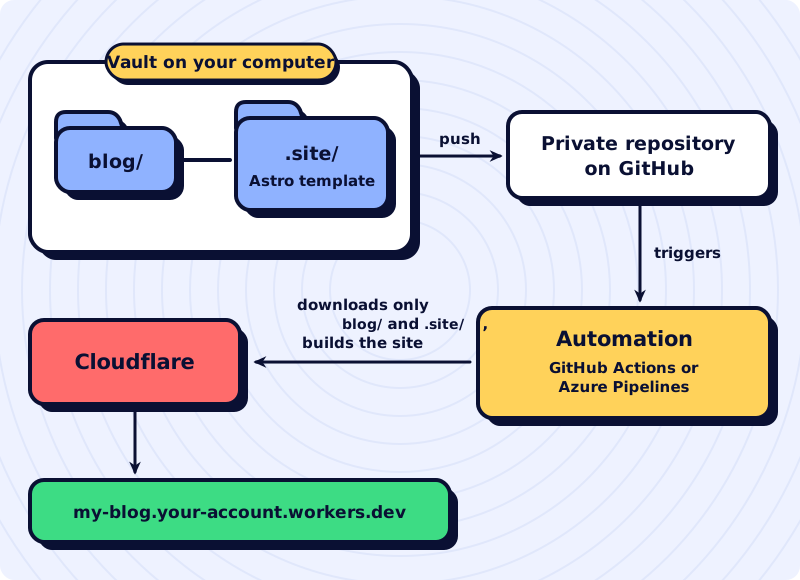
Everything lives in a single repository, the vault’s:
My vault/
├── blog/                   published notes and their images
├── drafts/
├── templates/              the post note template
├── (your other folders)
├── .site/                  the Astro template
│   └── src/content/blog    shortcut to ../../../blog
└── .github/workflows/      the automation, if you use GitHub Actions
Folders whose names start with a dot do not show up in Obsidian. The Astro template sits inside the vault but stays out of your way while you write.
The key piece is the shortcut at .site/src/content/blog. The template reads its posts from that folder. Instead of holding the sample posts, it becomes a symbolic link, a file system shortcut that points to the vault’s blog/ folder. The template still thinks it is reading its own folder, and it reads your notes.
The pages, in order
| Page | What you do |
|---|---|
| Obsidian | Install Obsidian, create the folders, adjust links and images, create the post template and put the vault in a private GitHub repository |
| The Astro template | Download the template into .site/, connect its posts folder to blog/ and see the site on your computer |
| Cloudflare | Create the account, publish the site for the first time and, if you want, connect a domain |
| Publishing with GitHub Actions | Make every push of the vault publish the site on its own |
| Publishing with Azure Pipelines | The same automation, if you prefer Azure DevOps |
The two automatic publishing pages are alternatives: pick one. Since the vault already lives on GitHub, GitHub Actions is the path with the fewest accounts.
What you need
- A computer running macOS. That is where the commands were tested. On Windows, the Obsidian and Cloudflare steps are the same, but the symbolic link on the template page needs a different command and permissions this guide does not cover. On Linux, the commands are the same, but there is no GitHub Desktop: push the vault with the Obsidian Git plugin or with Git in the terminal.
- Node.js 22.12 or later, from nodejs.org. It is the version the template asks for in its
package.json. - A GitHub account and GitHub Desktop, which puts the vault on GitHub and pushes it with buttons, no terminal needed.
- A Cloudflare account. The free plan is enough.
None of the services on this list charges anything for what the guide does.
What is different on brunosouzas.com
This site started from a different template (Astroplate) and was modified for needs the blog template does not cover. None of this is needed to follow the guide:
- Vault and site in separate repositories. The site reads the vault folder through an environment variable, and the automation downloads both repositories.
- Portuguese and English. Every text has two versions (
<slug>.pt.mdand<slug>.en.md), and the site checks that both exist. - Links between notes. A relative link to another published note becomes that page’s address, and a link to an unpublished note stops the build.
- Wiki and series. Besides the blog, a wiki section and multi-page guides like this one.
- SVG covers and attachments. Each text’s cover appears on the cards in the list, and files in
files/become downloads.